
Sign-up, login and adding a store
This section helps you create an account, sign in and connect your Wildberries store.
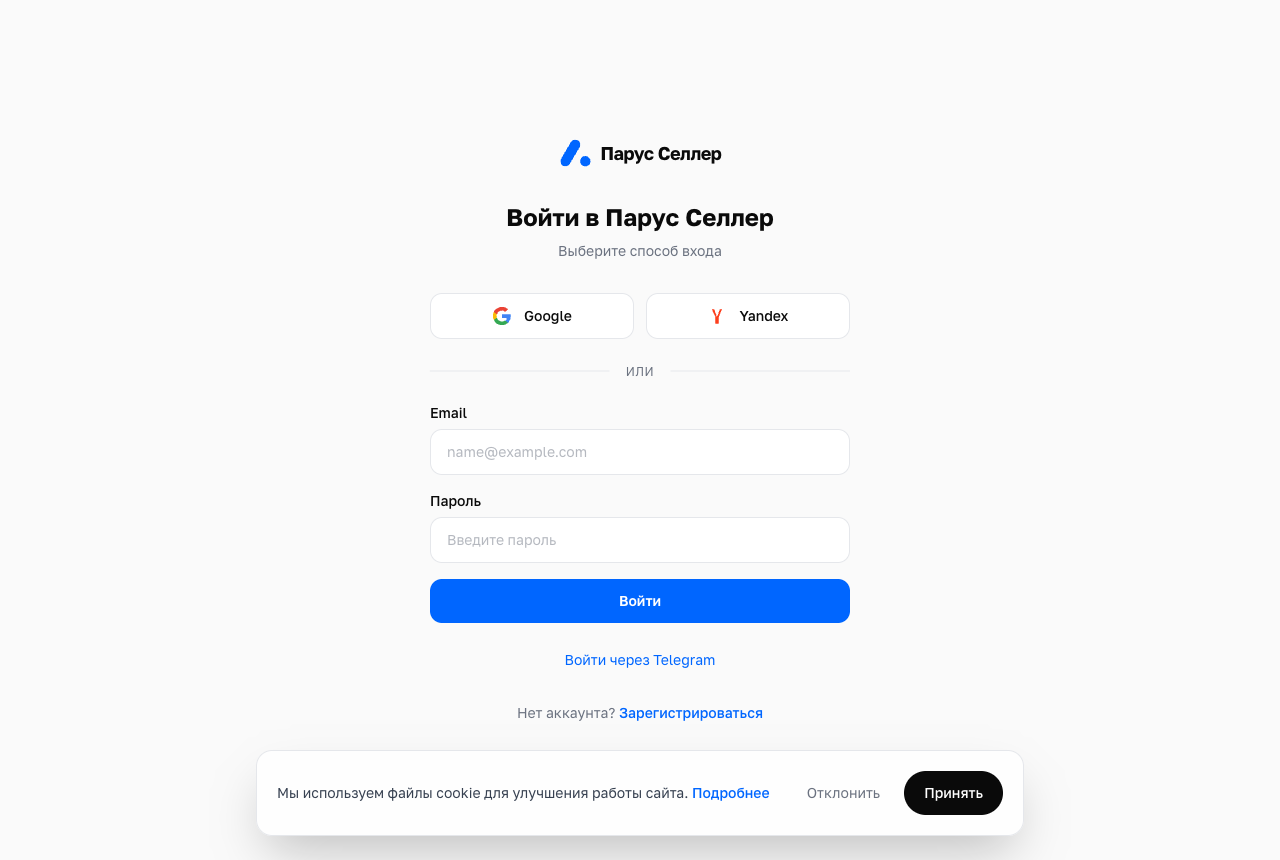
Sign-up
You can only register on the website.
- Open the registration page.
- Enter your name, email and a password (at least 8 characters).
- Right after registration the store connection opens, so you can paste the WB key straight away.
- A 6-digit code arrives by email. Enter it in the bar above the cabinet within 7 days, or data collection pauses until the email is confirmed. Until then the account can hold one store.
The faster way is the Google or Yandex button: the account is created without a password or code.
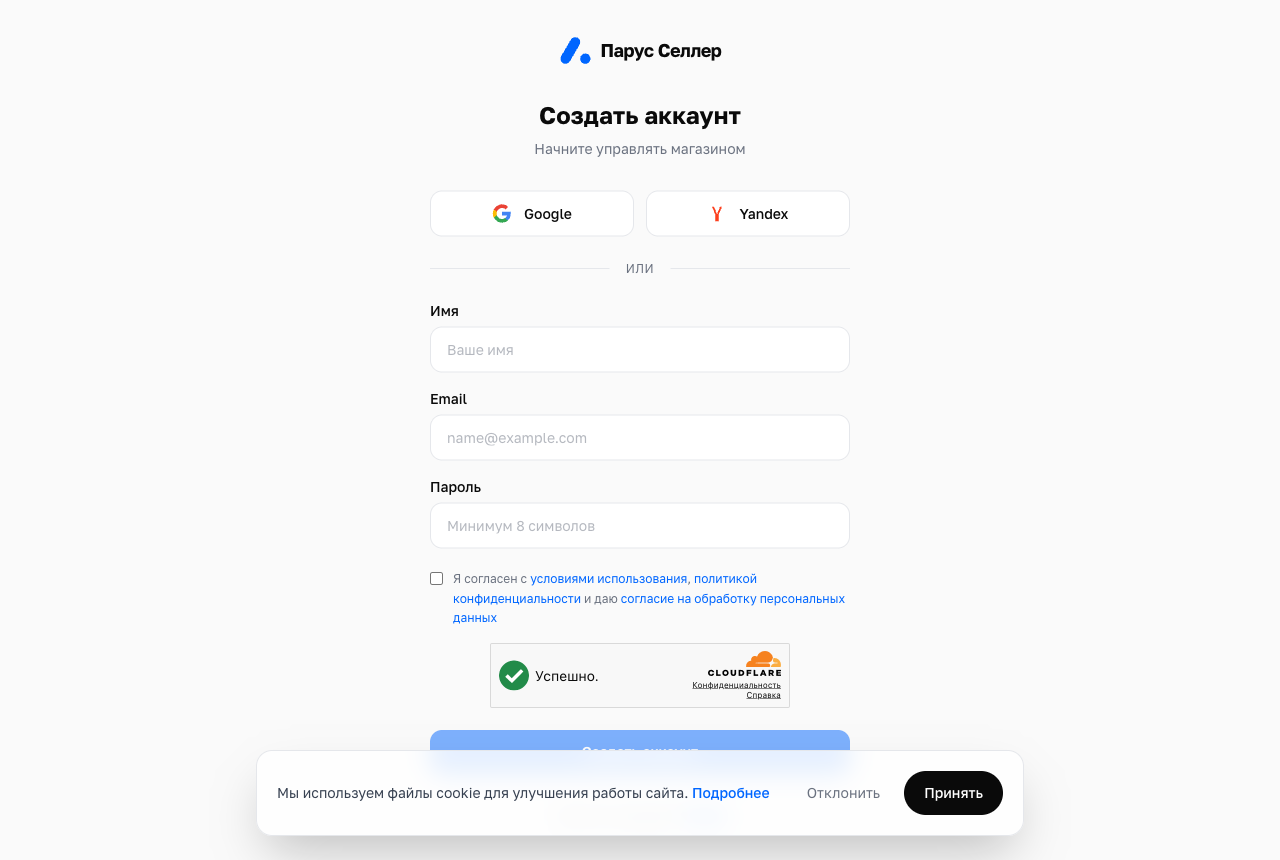
Login
You can sign in with email and password or via Google/Yandex OAuth.
After several failed login attempts the account is temporarily locked. This protects against password guessing.
Telegram notifications
Everything works on the website, and there is one account. Telegram is only for notifications: link it in the settings with a code, and alerts and reports start arriving there.
Adding a WB store
A store is added on the Stores page together with its WB API key. Only the owner of the WB account can issue the key: a manager sees a stub instead of the tokens section.
- In WB Partners, open Profile → «API integrations» (seller.wildberries.ru/api-integrations).
- Click «Create token» and pick the «Manual integration» tab.
- Token type: «Personal token». «Basic» is preselected, and its rate limits are hundreds to thousands of times stricter.
- Name the token, for example «Parus», and tick every category you can tick, so nothing is missed. The ones that matter most: Finance (without it there are no payouts or reconciliation), Promotion, Analytics, Statistics. Whatever you tick, the key cannot withdraw money or change your bank details.
- Access level: «Read and write». With «Read only», auto-replies, bids and prices will not work.
- Click «Create token» («Создать токен»), then «Copy and close»: WB shows the token only once.
- In Parus Seller, open the Stores page and paste the key. The service shows right away which categories the key has and which are missing.
- The first data collection takes 5–10 minutes.
A token lives 180 days. WB does not let you add categories to an existing token: if one is missing, issue a new token and replace the current one on the Stores page.