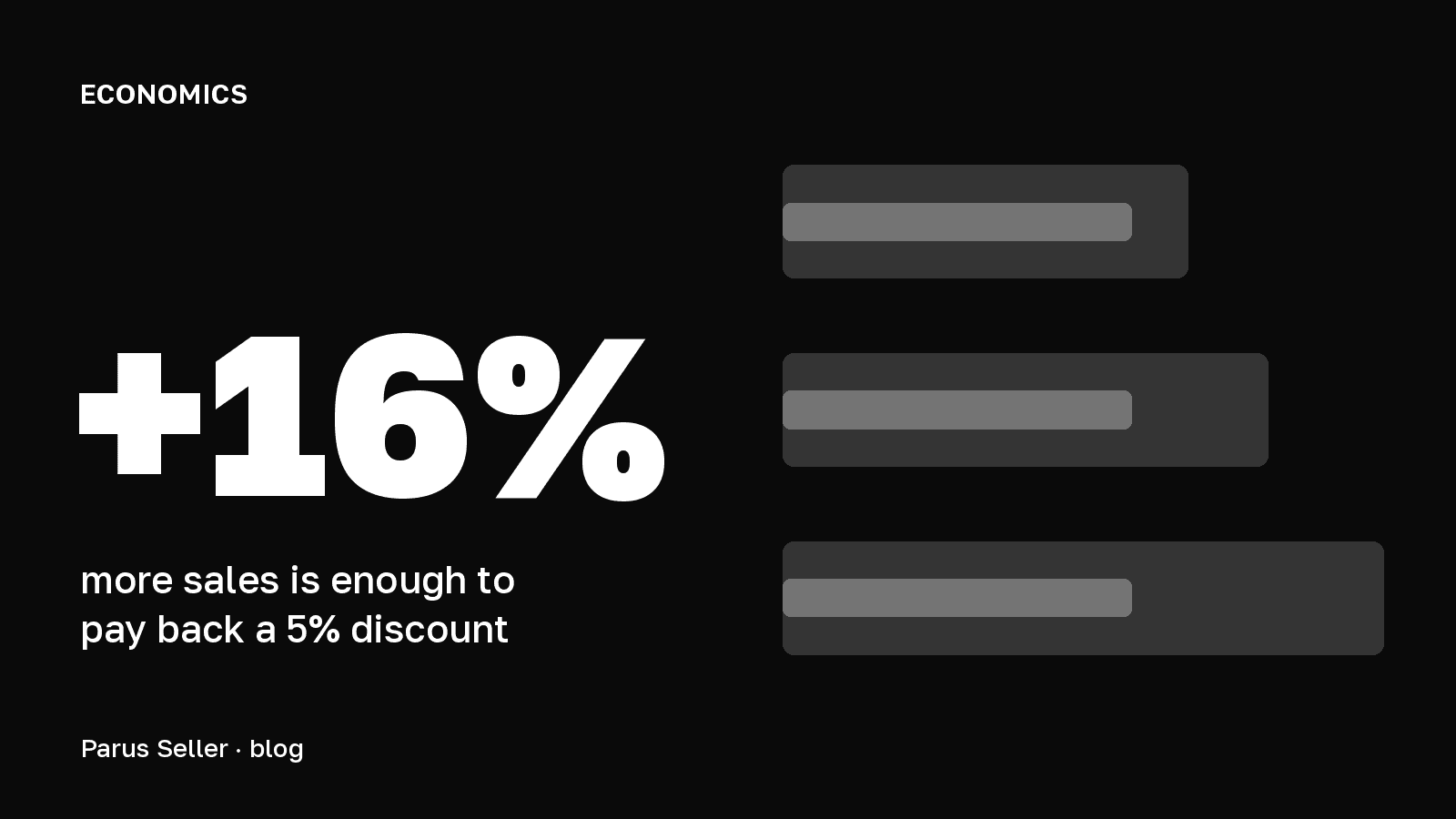
Promotions on Wildberries for sellers come in two kinds: regular promotions, where you add products yourself, and auto-promotions, where WB includes products without you and sets the discount at the start. Taking part lifts the product card in search and the catalogue, adds a badge and a red price, and WB advertises the sales itself. The seller funds the discount from their own price, so a promotion pays off when sales grow faster than profit per unit falls: for an item with a 27% margin a 5% discount needs 16% more sales, a 10% discount 39% more. The seller chooses the discount depth and the products.
Below are the mechanics of promotions according to the WB seller instructions (updated 18 May and 29 September 2026) and the offer agreement in force since 1 October 2026. Then comes a calculation the instructions do not give: what sales growth pays back a discount of 5 to 30% for a 1,500 ₽ item from our unit economics sheet, and how to use these targets to pick the discount depth and the products.
In short: WB promotions are regular promotions and auto-promotions; taking part lifts a product in search, and a high participation level adds another +3 to 5% to ranking. A 5% discount pays back with 16% more sales, a 10% discount with 39% more. You manage participation in the calendar: exclusions, minimum price, blocking and leaving through the price.
How Wildberries promotions work for sellers
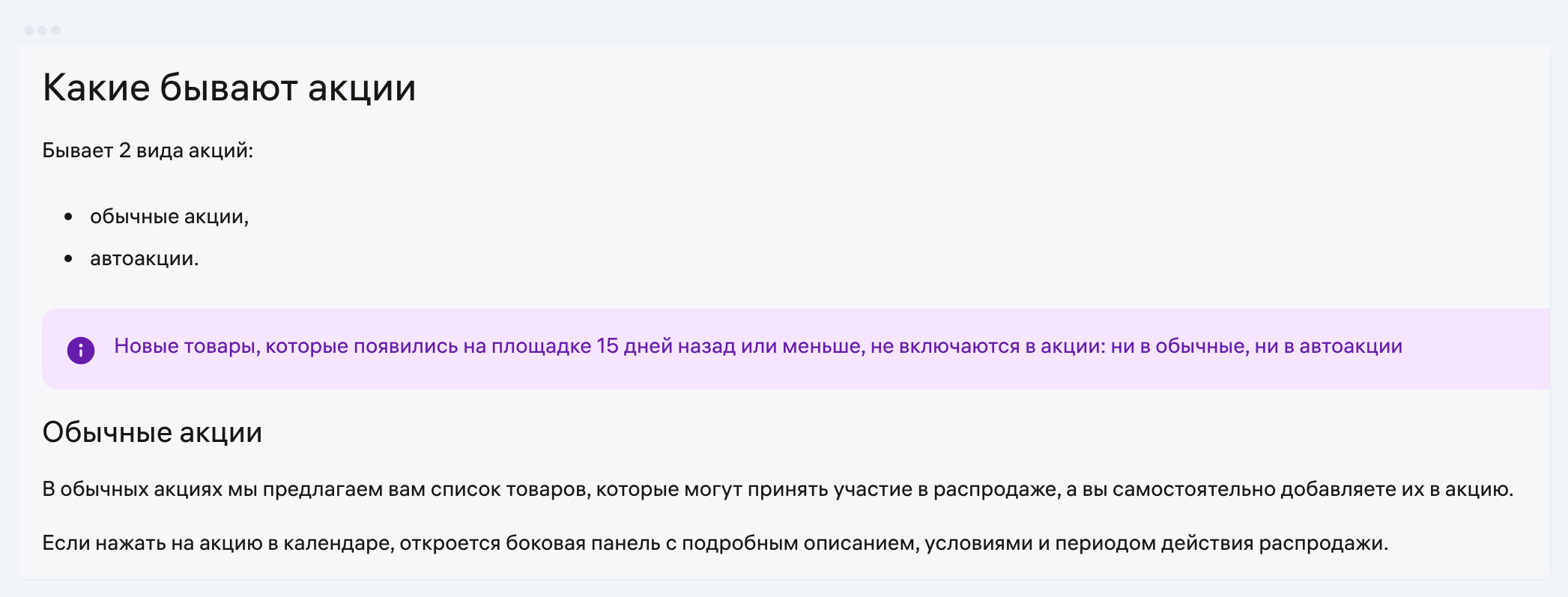
WB publishes every promotion in the "Promotions calendar" section: Products and prices → Promotions calendar. It shows current and upcoming promotions, the terms of each and your participation level. The difference between the two kinds is who makes the first move. In a regular promotion WB offers a list of eligible products, and you add them. In an auto-promotion products are added automatically, and the discount is set on its own when the sale starts.
| Regular promotion | Auto-promotion | |
|---|---|---|
| Who adds products | the seller | WB, automatically |
| When the discount is set | now (within 30 minutes) or at the start | at the start |
| Choice of discount depth | no | up to 4 levels, "Maximum" by default |
| Minimum price and blocking | do not apply | apply |
| How to leave after the start | raise the price above the planned one | raise the price above the planned one |
A rule for both kinds: products that appeared on the platform 15 days ago or less are not included in promotions. WB calculates the planned price for each product separately. If the discounted price equals the planned price or is lower, the product takes part in the promotion even if you did not add it.
How to join a promotion on Wildberries
To join a regular promotion, open it in the calendar and click "Go to products for the promotion", then "Generate" and "Download". The file holds only the products that meet the terms. If a product is not in it, you cannot add it. Keep the rows you need, upload the file back and choose when to apply the discounts: now or at the start of the promotion.
| Status in the promotion file | What it means |
|---|---|
| Participates: added, price equal to or below the planned one | regular promotion, the product enters at the start |
| Does not participate: not added or price above the planned one | regular promotion, needs a discount or adding |
| Participates: price below the planned one | auto-promotion, the price already fits |
| Does not participate: price reduction is blocked | auto-promotion, the discount is blocked |
| Does not participate: excluded in the calendar | auto-promotion, you removed the product |
| Does not participate: minimum price above the planned one | auto-promotion, your floor price kicked in |
One file takes up to 100,000 rows. If you choose "Add products now", WB applies the discounts within 30 minutes. The second route goes through the "Prices and discounts" section: the "Price to join the promotion" column shows the promotion price, the status and an "Add product" button. A product with several sizes at different prices never enters a promotion on its own. It can be added only after the start and only by hand.
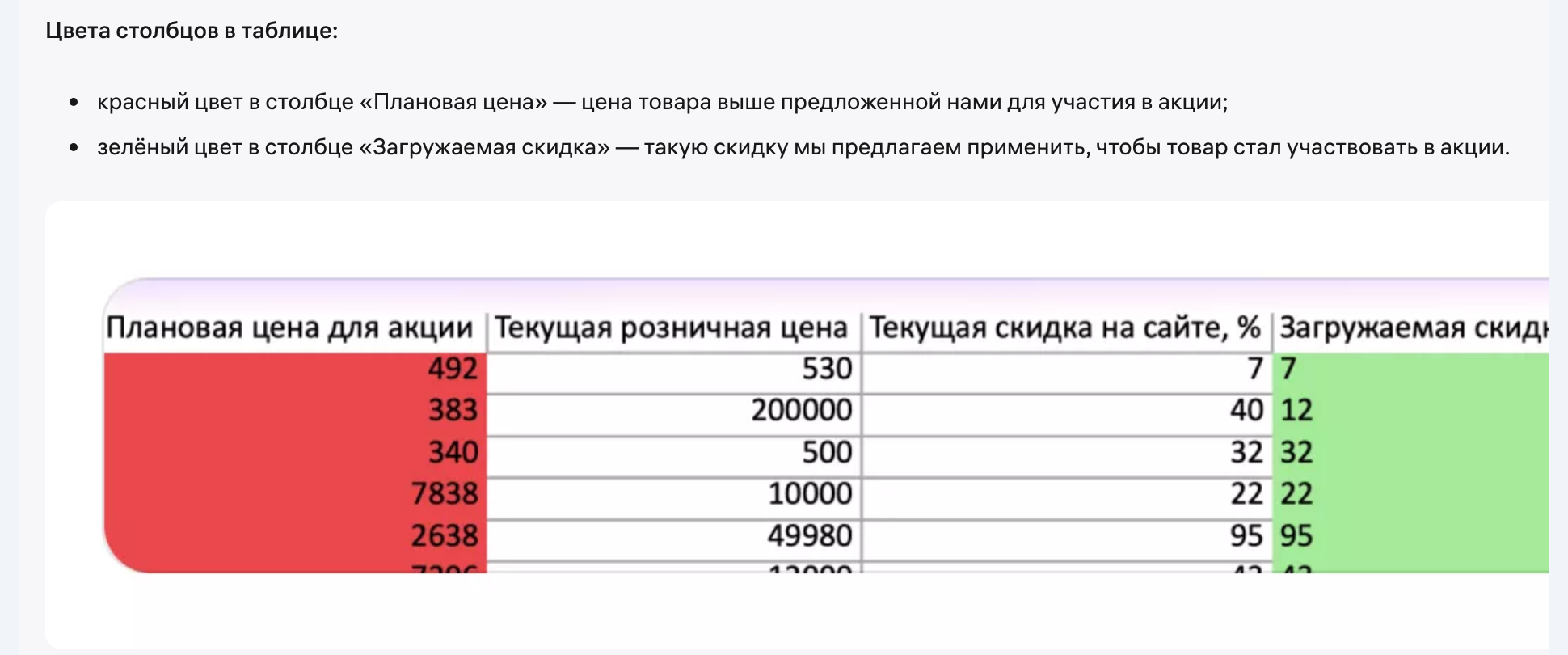
WB does not name the required discount as a single number in advance. The file has a "Discount to upload" column: the discount WB suggests applying so the price reaches the planned one. In auto-promotions the discount size depends on the chosen depth, and even at the same depth it can differ between products.
How a promotion discount changes profit per sale
The seller funds the promotion discount from their own price. Under clause 5.1 of the offer agreement, discounts in promotions and auto-promotions are part of the seller's retail price, and under clause 12.8.5 that price drops once the discount applies. WB commission and tax are calculated from the new price and fall too, while cost of goods, logistics, storage and ads per sale stay the same. That is why profit per unit moves more than the price, and a promotion should be judged by profit, not by revenue.
Take the item from our unit economics sheet: price 1,500 ₽, commission 20%, tax 6% of revenue, buyout rate 85%. Costs that do not depend on the price add up to 711.91 ₽: cost of goods 500 ₽, logistics adjusted for buyout 79.41 ₽, storage 22.50 ₽, ads per sale 100 ₽, penalties 10 ₽. Without a promotion the item makes 398 ₽ per sale.
Profit per sale at a discount = price × (1 − discount) × (1 − commission − tax) − price-independent costs
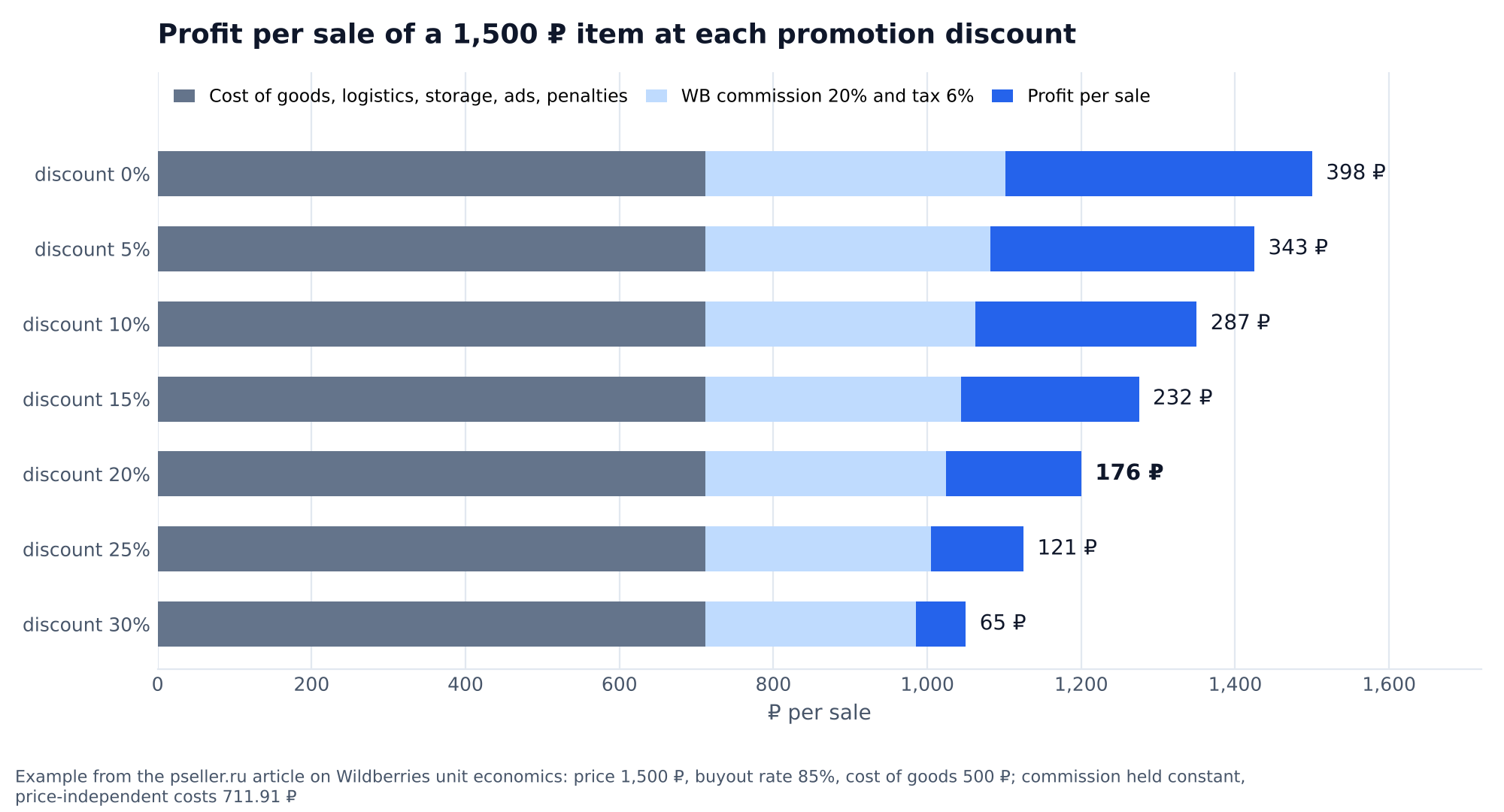
We held the commission constant at 20% of the price. The WB promotion instructions and the offer agreement have no clause that lowers the commission for joining a regular promotion or an auto-promotion. Separately, the calendar says that in some promotions the customer gets the WB discount if a set share of your products takes part. The marketplace pays that discount and it does not affect your payout, as we showed in the article on the WB loyalty discount.
What sales growth pays back a promotion discount
A promotion pays off when sales during it grow by the same factor by which profit per sale fell. For a 1,500 ₽ item a 5% discount pays back with 16% more sales, a 10% discount with 39% more, a 15% discount with 72% more. These are targets: whatever sales bring above them is extra earnings, plus new customers who found the product through the sale.
Required sales growth = profit without discount ÷ profit with discount − 1
| Promotion discount | Price | Commission and tax | Profit per sale | Required sales growth |
|---|---|---|---|---|
| 0% | 1,500 ₽ | 390 ₽ | 398 ₽ | baseline |
| 5% | 1,425 ₽ | 370.50 ₽ | 343 ₽ | +16% |
| 10% | 1,350 ₽ | 351 ₽ | 287 ₽ | +39% |
| 15% | 1,275 ₽ | 331.50 ₽ | 232 ₽ | +72% |
| 20% | 1,200 ₽ | 312 ₽ | 176 ₽ | +126% |
| 25% | 1,125 ₽ | 292.50 ₽ | 121 ₽ | +230% |
| 30% | 1,050 ₽ | 273 ₽ | 65 ₽ | +512% |
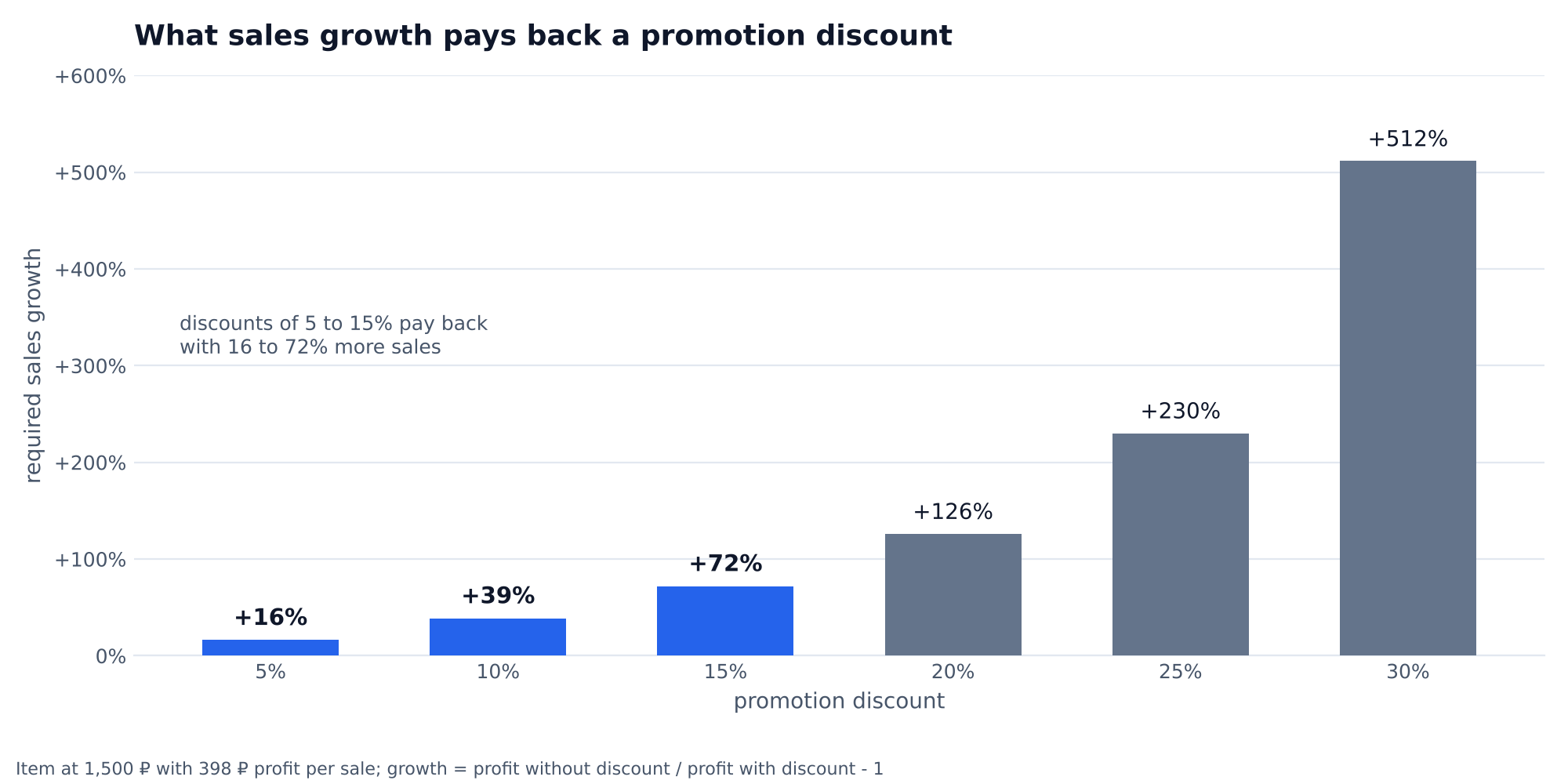
This gives a rule for choosing the depth. Every 5% of discount costs the same 55.50 ₽ of profit per sale, so a light or moderate discount pays back far more easily than a deep one: for an item with a 27% margin the working range is 5 to 15%, and a 25 to 30% discount makes sense when the goal is turnover or clearing stock. In an auto-promotion the level is chosen no later than 5 hours before the start, and the discount for each product is shown in the promotion file. Promotions work best on high-margin products: their sales growth target is lower. The floor is the break-even price, 962 ₽ for our item, and it is convenient to set it as the minimum price.
The calculation rests on three assumptions: buyout rate, logistics and ads per sale do not change during the promotion. A promotion brings organic orders, and if ads per sale get cheaper as a result, the sales growth target is even lower. Put your own price and costs into the calculator and compare profit before and after the discount.
Profit calculator for a single sale
Category commissions come from the WB API as of 05.09.2026, logistics use the basic WB rate. Every field is editable, the result updates instantly.
- Margin
- 2.5%
- Return on cost of goods
- 9%
- Break-even price
- 1,124 ₽
Maximum ad spend share that still keeps the sale at zero: 12.5%.
- WB commission486 ₽ · 40.5%
- Logistics with buyout rate92 ₽ · 7.7%
- Storage3 ₽ · 0.3%
- Ads120 ₽ · 10.0%
- Acquiring fee47 ₽ · 3.9%
- Tax72 ₽ · 6.0%
- Cost of goods350 ₽ · 29.2%
- Profit30 ₽ · 2.5%
How promotions affect search ranking
WB states plainly that taking part in promotions lifts a product in ranking, and this works for regular promotions and auto-promotions. Promotion products show higher in search, get a badge and a red price, and appear under the "Sale" filter. On top of that comes a boost for the participation level, that is, for the share of your order value over the last 7 days that came from promotion products.
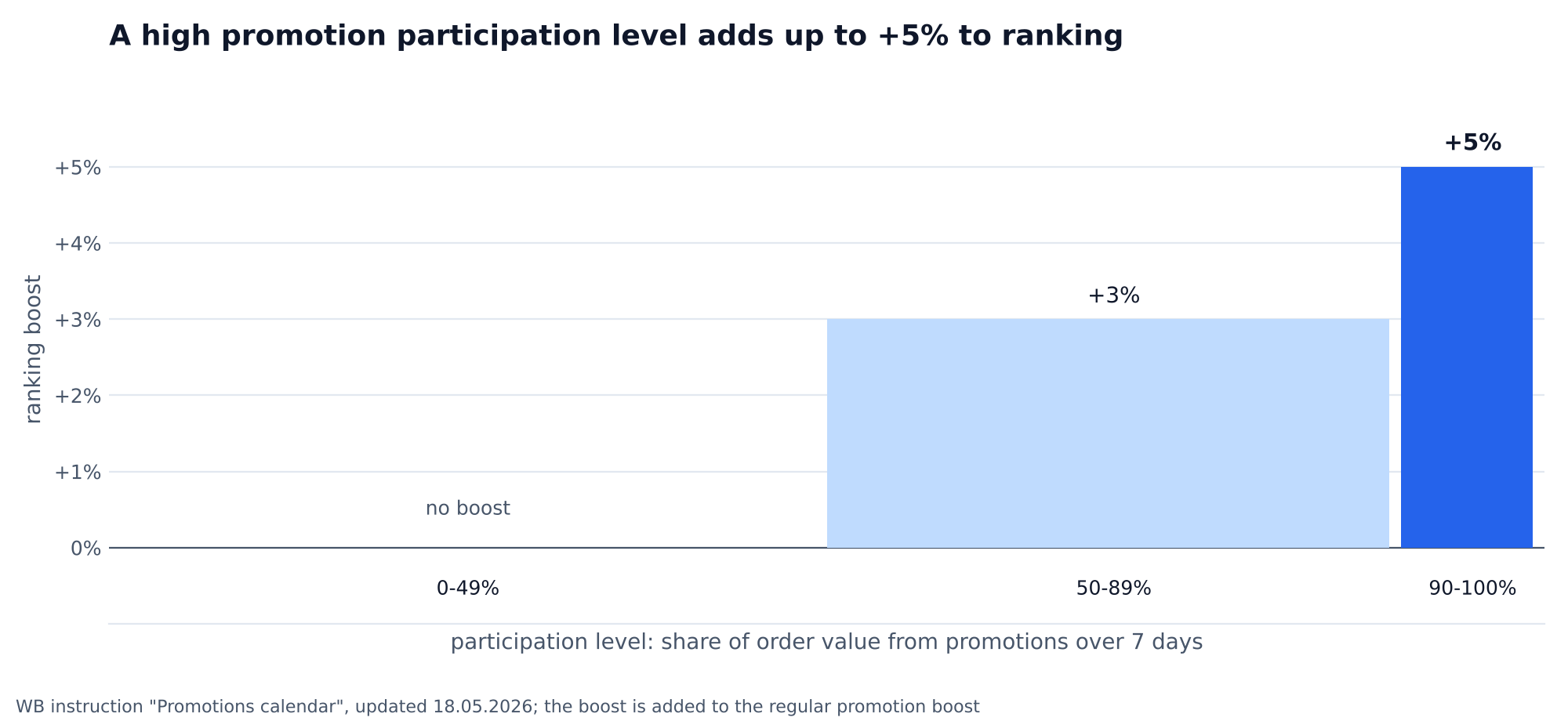
At a level of 50–89% products get +3% to ranking, at 90–100% +5%. This boost is added to the regular promotion boost. In the example from the "Promotions calendar" instruction the base promotion boost is 35%, and with the extra boost it comes to +40%. If the level drops below 50% or products leave promotions, the boost switches off. Auto-promotions also have discount depth: the deeper it is and the more products take part, the higher the boost.
How the promotion boost combines with delivery, conversion and price against competitors, we looked at in search results in the article on promotion on Wildberries. Together with the calculation above the picture is simple: the discount buys a place in search, and the sales growth targets show how many orders that place needs to bring.
How to leave a promotion and manage auto-promotions on Wildberries
The seller manages participation in an auto-promotion both before and after the start, in different ways. Before the start, add products to exclusions in the calendar; you can bring them back there too. After the start, the only way is to raise the price above the planned one in "Prices and discounts". Such a product can no longer be returned through the calendar, only by lowering the price again.
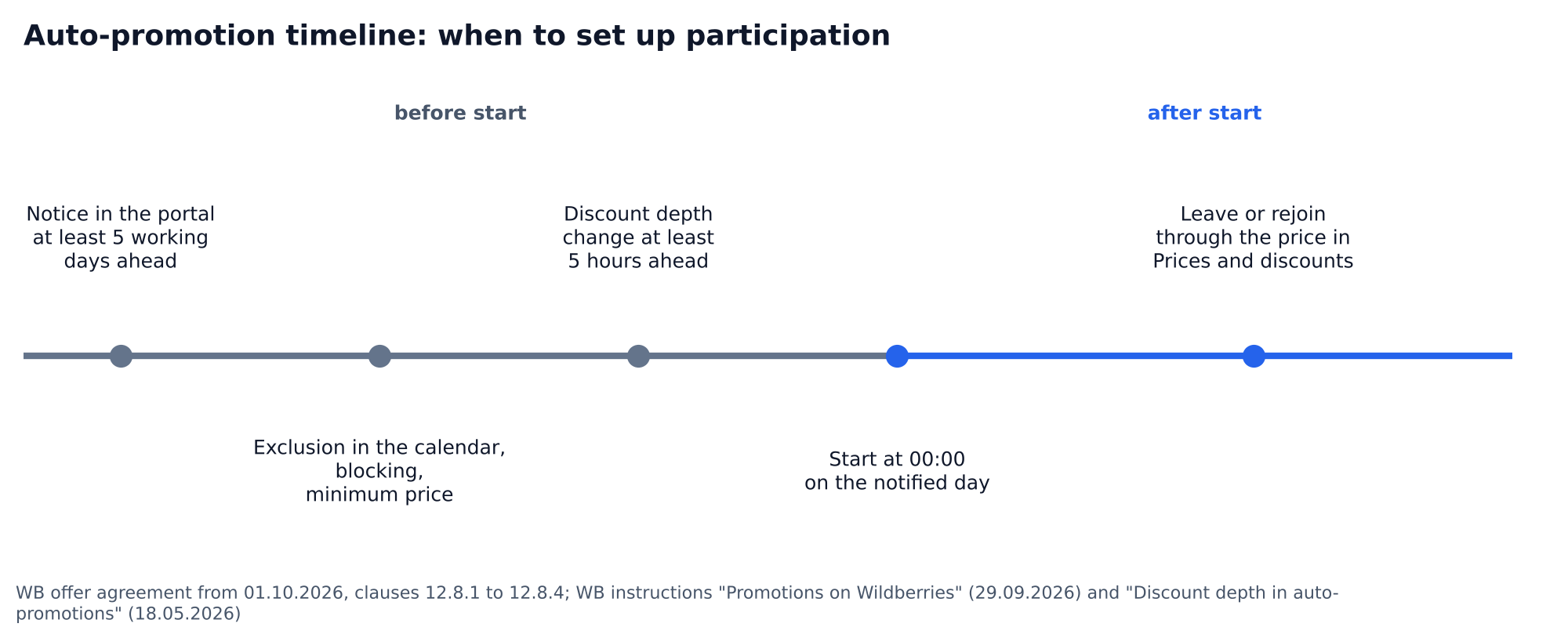
Under the offer agreement WB must warn about an auto-promotion in the portal at least 5 working days before the discount applies: the start date, the discount size in percent and the list of products (clause 12.8.1). The discount applies from 00:00 on the notified day (clause 12.8.4). You can exclude all or some products both before and during the auto-promotion (clause 12.8.3). Discount depth can be changed no later than 5 hours before the start.
A product is removed from a regular promotion in the promotion window in the calendar or, the same way, with a price above the planned one. The quick route in the other direction is the "Add all eligible" button in a running auto-promotion: in one step it sets planned prices for all eligible products, even those with blocking and a minimum price. After the promotion ends prices do not return on their own; you can restore them in "Prices and discounts".
What blocking auto-promotions means on Wildberries
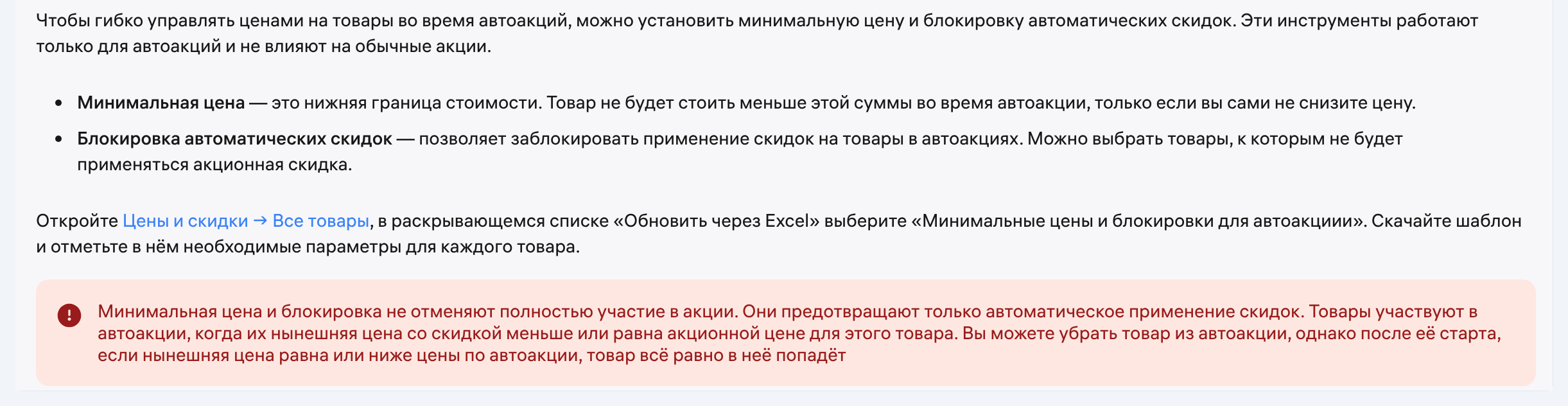
Blocking automatic discounts works as a control tool: WB does not apply the auto-promotion discount to the selected products, and the rest take part as usual. It is set in Prices and discounts → All products → "Update via Excel" → "Minimum prices and blocks for auto-promotions". The offer agreement gives the seller the right to opt out of auto-promotions for a period or with no time limit (clause 12.8.2).
| Tool | What it does | Where to set it |
|---|---|---|
| Exclusion in the calendar | removes a product from a specific auto-promotion before the start | Promotions calendar |
| Blocking automatic discounts | WB does not lower the product price in any auto-promotion | Prices and discounts, Excel template |
| Minimum price | the discount does not apply if the price would fall below the floor | Prices and discounts, Excel template |
| Price above the planned one | the product leaves a promotion already running | Prices and discounts |
Both settings, blocking and a minimum price, do not cancel participation entirely. They only forbid the automatic discount. If your current price is already equal to the planned one or lower, the product still enters the auto-promotion after it starts. These tools do not apply to regular promotions. It makes sense to set the minimum price at break-even, 962 ₽ for our item: then the product sells at a profit in any auto-promotion.
FAQ about Wildberries promotions
Do I have to take part in promotions on Wildberries? No, under the offer agreement the seller may opt out of auto-promotions and exclude any products. Taking part pays when the sales growth covers the discount: the products get the promotion boost in search and the sale traffic.
How do I turn off auto-promotions on Wildberries? Set blocking of automatic discounts in "Prices and discounts" through the Excel template, or exclude products in the calendar before the start. After the start only a price above the planned one helps.
Why did a product enter a promotion if I did not add it? Because its current discounted price is already equal to the planned one or lower. Such a product takes part in an auto-promotion even with blocking and a minimum price.
Who pays for the discount in a Wildberries promotion? The seller. The seller's retail price drops by the discount, and the payout is calculated from it. The WB discount, the WB loyalty discount, is paid by the marketplace.
What discount should I set in a Wildberries promotion? One that realistic sales growth will pay back. For an item with a 27% margin a 5% discount needs +16% sales, a 10% discount +39%, a 15% discount +72%.
When does WB warn about an auto-promotion? WB reports it in the portal at least 5 working days before the discount applies and sends a notice to the "bell" and to the calendar.